
6. Gadi Compute Job Basics#
Overview
Tutorial: 30 min
- Objectives:
Learn how to write a PBS job script for Gadi.
Learn how to launch a job in Gadi.
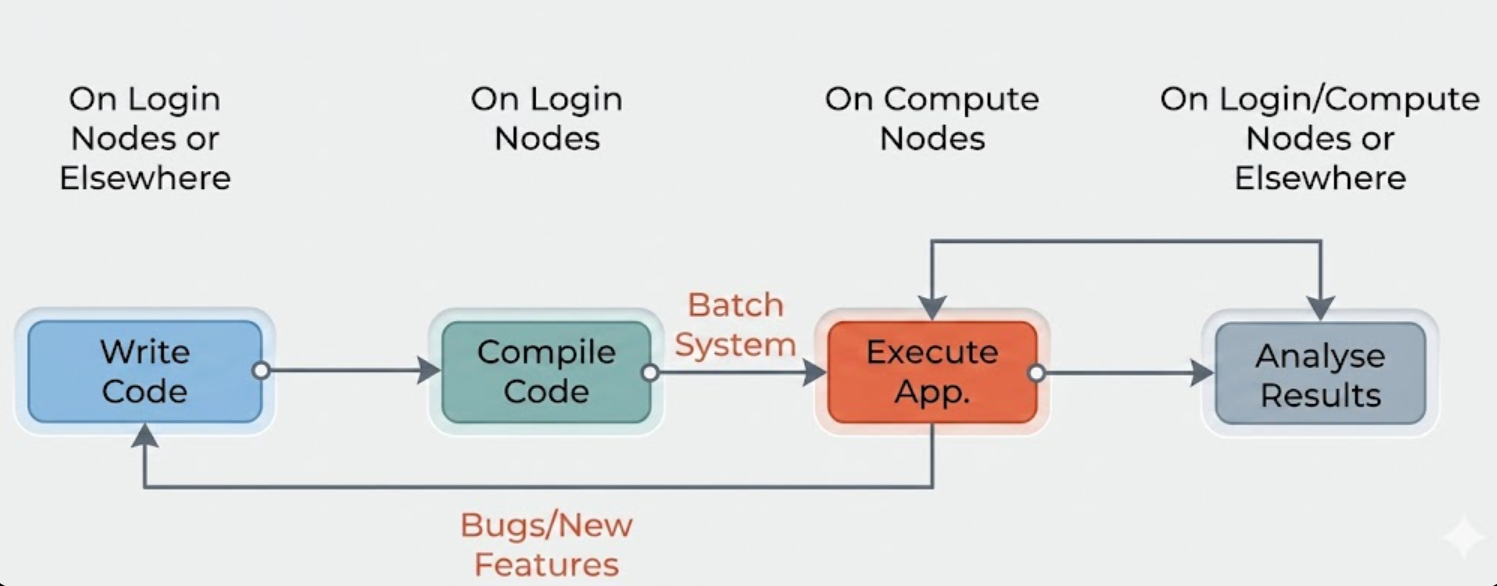
If you remember the HPC usage flow diagram from the previous section, this section will show you how to submit the code through the scheduler to the compute nodes.
6.1. Planning Jobs#
To run compute tasks such as simulations, weather models, and sequence assemblies on Gadi, users need to submit them as ‘jobs’ to ‘queues’. Each queue has different hardware capabilities and limits to run different types of jobs.
Ideally, we should know the answers to the following questions before running a job:
Which project will you use for this job?
Which modules must be loaded for your software?
What command or script will run your main program?
How much compute resources (CPU cores/GPUs, memory, walltime) does your task require?
However, this is not always possible, especially for new users or running a new workflow for the first time. In this case, we can follow the following steps:
Gather information: Find out the available queues, hardware capabilities and software modules for your program.
Run test jobs: use a small sample of the data and small number of cores/walltime to test the script/program.
Adjust resources: gradually increase the resources and improve code efficiency to find the performance sweet spot.
Accounting: check your project allocation and estimate the cost (time, RAM, compute cores etc.) of full job.
Full run: run the job with the full dataset and monitor the job status.
Note
The sweet spot is where the job can take advantage of parallelism and achieve a shorter execution time, while utilising at least 80% of the resources requested.
Searching for this sweet spot can take time and experimentation, some code will need several iterations before that efficiency is found.
6.1.1. Accounting Commands#
Command |
Description |
|---|---|
|
Display compute grant and usage |
|
Display storage grant and usage on |
|
Display storage grant and usage on |
|
Report data usage on filesystem |
6.1.2. Compute Resources#
Compute resources are allocated to projects, not individual users, through various allocation schemes.
Service Units (SU) measure Gadi’s compute hours.
Projects must have a compute allocation to run jobs.
Compute allocations are assigned quarterly.
Allocations can be transferred, adjusted, or reallocated by the project’s Chief Investigator (CI) or scheme manager.
Service Units (SUs) are charged based on the resources reserved for a job and the walltime. The resources reserved are determined by the greater of the requested CPUs or the proportion of memory.
Job Cost (SU) = Queue Charge Rate × Max(NCPUs, Memory Proportion) × Walltime Used (Hours)
Queue Charge Rate: The charge rate for the queue as listed in the Queue Limits. Note that using express queues increases job priority but also raises the job’s cost.
NCPUs: The number of CPUs requested for the job using the PBS -l ncpus option.
Memory Proportion: Calculated as Memory requested ÷ Memory per core (where Memory Per Node is divided by NCPUs per node for the queue).
Examples of Job Costs
Example 1: A job using 1 CPU for 30 minutes in the normal queue will incur a charge of 1 Service Unit (SU).
Example 2: A job using 4 CPUs with 16 GiB of memory for 5 hours of walltime in the normal queue will be charged 40 SUs.
Calculation: 4 CPUs × 5 hours × 2 SU per hour = 40 SU.
The situation can become more complex:
Some jobs may require fewer CPUs but need more memory.
Others may require GPUs.
6.1.3. Queue Structure#
Jobs on Gadi are submitted to different queues, which determine resource availability, limits, and cost (service unit charge rates). As a new user, focus on the normal queue first—most standard CPU work runs there. Other queues are available when you need faster turnaround, data transfer, or GPUs.
Queue Name |
Description |
|---|---|
normal |
Default queue for standard CPU jobs. Start here for most workloads. |
express |
For short, urgent work with higher queue priority but increased SU charges. Limited walltime. |
copyq |
For data transfer and massdata (MDSS) operations; not for general compute workloads. |
gpuvolta |
For jobs requiring NVIDIA Volta GPUs. The most widely available GPU queue on Gadi. |
Gadi also has specialised queues (for example hugemem, normalsr, and dgxa100) for very large memory, newer CPU hardware, or specialised GPU nodes. See the Queue Structure page when you need those.
You select a queue using the -q option in your PBS batch script or interactive job request, for example:
#PBS -q normal
Each queue has limits, such as:
Maximum CPUs or GPUs per job
Maximum walltime
Maximum number of running jobs per project or user
Up-to-date queue characteristics and charge rates are listed at: Queue Limits
Note
Submitting to an express or GPU queue will affect both the job’s priority and cost (SU consumption).
6.2. Running Batch Jobs#
The overall procedure to run a job on Gadi takes a few steps:
Steps for Running a Batch Job on Gadi
Write a job script (specifying the queue, duration, and resources needed).
Submit the job script to the queue.
Monitor the job status (If the job uses more resources than requested, it will be terminated immediately).
View the job output and error files (by default, saved in the directory from which you submitted the job).
Cancel the job if needed.
Batch jobs
A batch job is a non-interactive job submitted to the scheduler (like PBS or SLURM) to run at a later time. It executes your code or script without requiring your direct involvement during execution.
To run a batch job on Gadi, users need to create a PBS script. The script is a text file formed of two sections: resource requests and job steps. Resource requests involves specifying the required number of CPUs/GPUs, expected job duration, amounts of RAM, disk space, and so on. Job steps involves shell commands of what needs to be done (i.e. loading environment/software modules, running computing steps, parameter space, etc.).
Here is an example of a PBS script:
 1#!/bin/bash
 2
 3#PBS -P vp91
 4#PBS -q normal
 5#PBS -l ncpus=48
 6#PBS -l mem=10GB
 7#PBS -l storage=gdata/vp91+scratch/vp91
 8#PBS -l walltime=00:02:00
 9#PBS -N testScript
10#PBS -l wd
11
12module load python3/3.11.0
13module load papi/7.0.1
14
15. /g/data/vp91/Training-Venvs/intro-to-numba/bin/activate
16which python
17
18python3 main.py $PBS_NCPUS> /g/data/vp91/$USER/job_logs/$PBS_JOBID.log
Specifies which shell to use
-P - Gadi project (sometimes called account) to use
-q - Gadi queue to use
-l ncpus - Total number of cores requested
-l ngpus - Total number of GPUs requested
-l mem - Total memory requested
-l jobfs - Local scratch space on the compute node (access via
$PBS_JOBFS; removed when the job ends)-l storage - Storage in
g/dataand/scratchto come from projectvp91-l walltime - Total wall time for which the resources are provisioned (in hours:minutes:seconds)
-N - Name of the job
-l wd - Enter the working directory once the job has started.
Note
#PBS is a PBS scheduler directive used to pass job configuration options to the batch system, while #!/bin/bash is a shebang that specifies the script should be executed using the Bash shell.
Note
For more PBS directives, see the PBS directive list.
Check queue limit page for core numbers, memory and walltime limits.
For different Gadi queues, see the queue structure page.
6.3. Practice: Write a PBS job script#
Exercise
To run our compiled hello_mpi program on Gadi, we need to wrap it in a PBS job script:
Go to
/scratch/vp91/$USER/first_job.Inside
first_job, create new filejob_script.shand paste the template below, change<Project code>tovp91, and save.
 1#!/bin/bash
 2
 3#PBS -P <Project code>
 4#PBS -q normal
 5#PBS -l ncpus=4
 6#PBS -l mem=8gb
 7#PBS -l jobfs=1GB
 8#PBS -l walltime=00:10:00
 9#PBS -l storage=gdata/vp91+scratch/vp91
10#PBS -l wd
11
12module load openmpi/4.1.5
13mpirun hello_mpi
6.4. Submit and Monitor Jobs#
Once you have saved this script as a ‘.sh’ file, you will be able to submit it using the ‘qsub’ command, followed by the file name.
To submit a job use the command
qsub <jobscript.sh>
After your job has been successfully submitted, you will be given a jobID (e.g. 12345678.gadi-pbs). You can use this jobID to monitor the status of your job.
To know the status of your job use the command
qstat <jobid>
To know get the details about the job use the command
qstat -swx <jobid>
We recommend checking the Job Monitor regularly to ensure that your jobs are running efficiently, especially if you are running a new workflow for the first time.
When the job is completed, it will produce two new text files in the working directory, with a filename script.sh.o<JobID> and script.sh.e<JobID>.
The first file, with ‘o’ in the file name, is the output of the job, which should have run successfully on Gadi.
The second file, with ‘e’ in the file name, is the error stream. this will document any errors that occured while the job was running. In this case, the error stream file should be empty.
6.5. Practice: Submit and Monitor Your First Job#
Exercise
Submit the job script you created in the previous exercise.
Check the status of the job using the qstat command.
Check the output and error stream of the job using the less command.
Use other commands to check the job status and utilisation of resources.
Command |
Description |
|---|---|
man qstat |
View the manual for qstat and a range of helpful commands |
qdel <jobid> |
Delete the job with jobID <jobid> |
nqstat_anu <jobID> |
See how much CPU and memory your job has actually been using |
qstat -swx <jobid> |
Display the job status in the queue with comment |
qstat -fx <jobid> |
Display full job status information |
qps <jobid> |
Take a snapshot of the process status of all current processes in the running job |
qcat [-s/-o/-e] <jobid> |
Display [submission script/STDOUT/STDERR] of the running job |
qls <jobid> |
List contents in the folder $PBS_JOBFS |
qcp <jobid> <dst> |
Copy files and directories from the folder $PBS_JOBFS to the destination folder <dst> |
6.6. Interactive Jobs#
An interactive job allows you to interact directly with the HPC system and the job while it’s running. This means you have a command-line shell (e.g., terminal) on the compute node where you can run commands in real-time. NCI recommends that users utilise this resource to debug large parallel jobs or install applications that have to be built when GPUs are available.
qsub -I is the command to request an interactive job.
qsub -I -q normal -P vp91 -l walltime=00:10:00,ncpus=4,mem=10GB
Hint
Check your shell prompt before and after running the command. Why did it change?
See answers
Your access changed from the login node to the compute node during the interactive session.
Once you are finished with the job, run the command
exit
to terminate the job.
Key Points
Multiple PBS directives are available request a job.
Gadi uses some custom directives.
There are two modes to request a job - batched and interactive. You can also use interactive jobs to test your script/program.